
Move keyword data in and out without losing its meaning
Choose the destination list and its membership rules before bringing new rows into a shared workspace.
The input has a source
The preview is a contract
The output has a receiver
Treat import and export as two different handoffs
Import turns external wording and optional metadata into normalized records owned by the active workspace. Export reads stored records through a chosen scope and writes a file or clipboard payload for another person or system. Neither direction proves that similarly named metrics share a definition.
Write down the source, market, purpose, and receiving decision before moving data. A clean import should let the team recover where a term came from. A clean export should let the receiver understand what was included, when the evidence was collected, and whether the file was truncated without needing your open browser tab.
Add a short set as search queries, one per line
Use the simple keyword path when you already know a small set of queries. Paste one term per line and keep the wording close to something a person could search for. Blank lines are ignored, surrounding whitespace is removed, and duplicate wording is normalized before the preview.
Do not mix article titles, instructions, comments, markets, and keywords in the same field. Manual entry creates workspace records. It does not silently request every external metric. If you choose Import and choose data, the product opens a separate package and price decision after the records are imported.
- Use the readable query, not a note such as write landing page for this.
- Keep distinct language or country contexts visible instead of hiding them in comments.
- Split phrases that contain several unrelated search tasks.
- Review brand spelling, punctuation, and ambiguous abbreviations before import.
- Use a file or pasted table when metadata must travel with the term.
Choose the input method that preserves the source shape
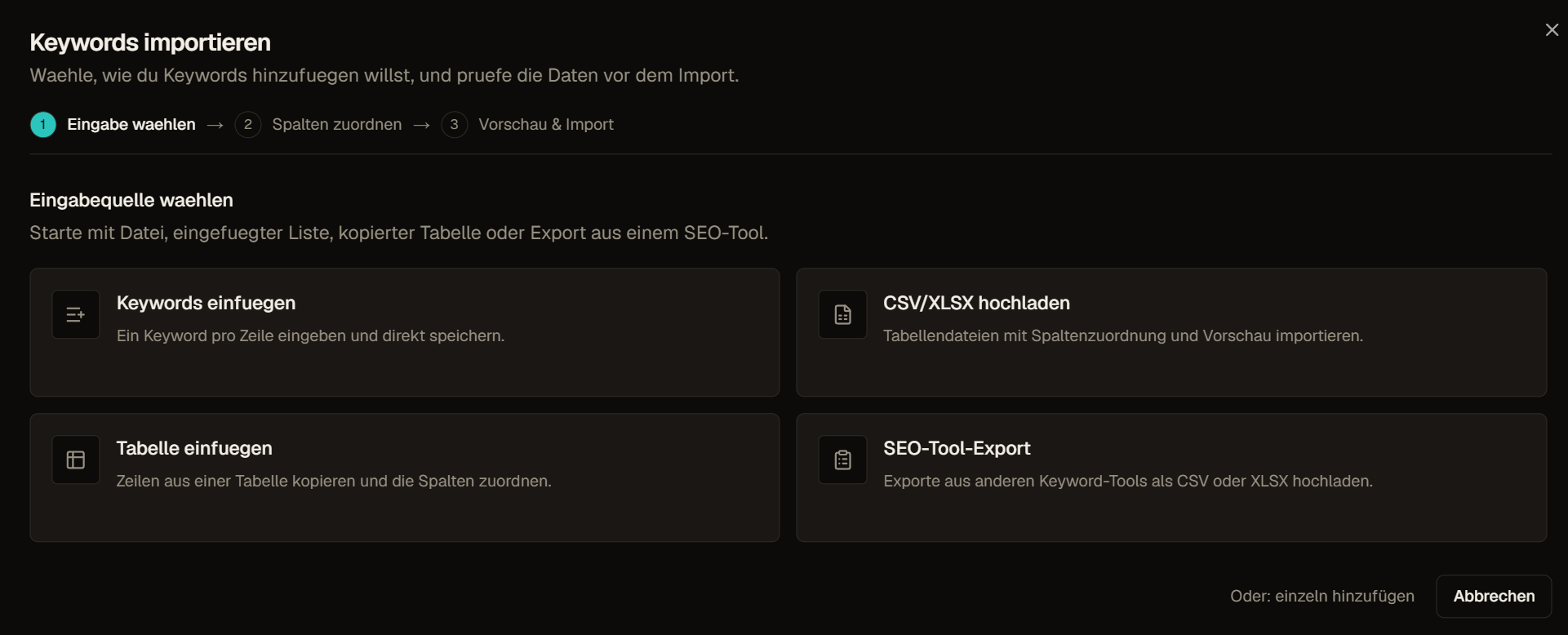
The import dialog supports plain keyword lines, a CSV, TSV, TXT, or XLSX upload, a pasted table, and an SEO-tool export path. Uploaded files currently accept one supported file up to the limit shown by the interface, with 10 MB as the default client limit. One import can contain up to 10,000 unique accepted keywords.
Plain lines skip column mapping. Tables and files retain their rows for header detection and mapping. If the first row is not recognized correctly, check whether it was treated as data or as a header before continuing. A parser warning is not always fatal, but it belongs in the review rather than being ignored.
| Input | Use it for |
|---|---|
| Paste keywords | One keyword per line without metadata |
| Upload file | CSV, TSV, TXT, or XLSX with a repeatable source file |
| Paste table | Rows copied from a spreadsheet or reporting surface |
| SEO-tool export | A vendor-shaped file that still needs explicit field review |
When a file includes metric columns, compare them with the metric definitions before treating imported values as equivalent measurements.
Map the keyword column first and every optional field deliberately
The keyword column is required. Automatic mapping recognizes common header vocabulary, but the visible mapping is the contract that matters. Optional roles include tag, list, language, country, Volume, KD, CPC, paid Competition and Competition Index, Intent, bid bounds, SERP result count, average backlinks, average referring domains, and the provider link-rank field stored internally as topTenAvgRank.
Do not map a familiar-looking column by name alone. Verify unit, market, currency, date, provider, and missing-value convention. In particular, paid Competition is not organic KD, SERP result count is approximate, and topTenAvgRank is not the average Google position. Leave a field unmapped when its meaning cannot be established.
Normalization removes input noise without deciding search intent
The importer trims whitespace, drops blank rows, preserves the first readable casing, and deduplicates by lowercase keyword wording. Terms longer than the supported 200-character maximum are rejected. Duplicate rows inside the same input are merged before the preview rather than becoming separate workspace records.
This normalization does not prove that two phrases have the same user task, market, or SERP. It also does not merge spelling variants, singular and plural forms, translations, or synonyms by semantic guess. Review those relationships as editorial or research decisions after the mechanical duplicate pass.
Language, country, tags, and list names have different jobs
A mapped language is normalized to a recognized short code when possible. Country records the market context and can fall back to the default country selected in the import options. Language and country are not interchangeable. The same wording can belong to different result environments in Germany, Austria, Switzerland, the United States, or another market.
Mapped tags become reusable workspace labels. Mapped list names become membership instructions, and a chosen destination can add one existing manual list or create a new list for the imported set. Missing tag or list names can be created during the import. Review naming carefully because a typo can become a durable workspace object rather than a harmless cell value.
- Tag cells accept several labels separated by commas or semicolons.
- List cells use commas between list names so a semicolon can remain part of a name.
- The destination picker offers existing manual lists, not rule-driven smart-list membership.
- No destination list leaves the records in the workspace inventory without adding that extra membership.
- A mapped country on a row takes precedence over the chosen default for that row.
Use the preview as the import contract
The preview reports inspected rows, accepted records, duplicates inside the input, invalid entries, and known duplicates already present in the workspace. It can show country, tags, lists, and duplicate state where available. Select only the rows that belong in this handoff before committing.
If the workspace duplicate check is incomplete, the preview remains usable but cannot safely deselect every existing record for you. Stop and retry the check or use a smaller batch when duplicate behavior matters. Do not interpret a clean in-file duplicate count as proof that the workspace contains none of the same terms.
Choose whether existing records stay untouched or receive the import
Skip existing records when the file should add only new normalized terms. Include existing records when the reviewed import is allowed to update supported imported fields and apply the selected metadata path. Imported metric rows can write to existing records, so this is a data-change decision, not merely a duplicate-display preference.
A duplicate does not create a second live record. Check the completion summary for imported, skipped, duplicate, and error counts. When preserving the existing metric state matters, remove duplicate rows from the selected import rather than assuming a later source will automatically win in a way the receiving team understands.
Imported metrics are source data, not fresh Crawl Foundry observations
Mapped metrics can be stored without buying another external request. That preserves useful migration context, but the imported value remains governed by the source file's definition and date. The importer cannot reconstruct an omitted provider, currency, match type, market, or collection timestamp from the number alone.
Keep the source file and its documentation with important migrations. Use imported metrics for comparison only after definitions align. Request current Crawl Foundry-supported data separately when a decision needs the product's present provider contract and a visible data-fetch timestamp. Do not report an imported blank as zero.
Import first, then make a separate paid-data choice
Import only writes the reviewed records and supported metadata. Import and choose data performs the same import, then opens the enrichment package and price selection for the imported keywords. It does not commit a hidden paid package while the file is still being parsed.
When the file already contains supported paid metric columns, the flow can keep that imported context without immediately opening another data choice. If you later request enrichment, confirm scope, country, packages, estimate, and balance. The resulting data job has its own progress and completion state apart from the import summary.
Verify completion before using the imported set
The immediate import result separates imported, skipped, duplicate, and error counts. A large or enriched path can also expose progress through its job record. Compare the final counts with the selected preview and destination lists before starting analysis, another enrichment, or an export.
If metadata assignment fails for some rows, do not assume the keyword records also failed or that every target list is complete. Inspect the visible result, retry only the affected operation when supported, and retain the original file. Re-running the entire import with updates enabled can modify records that already succeeded.
Select the export source before the format
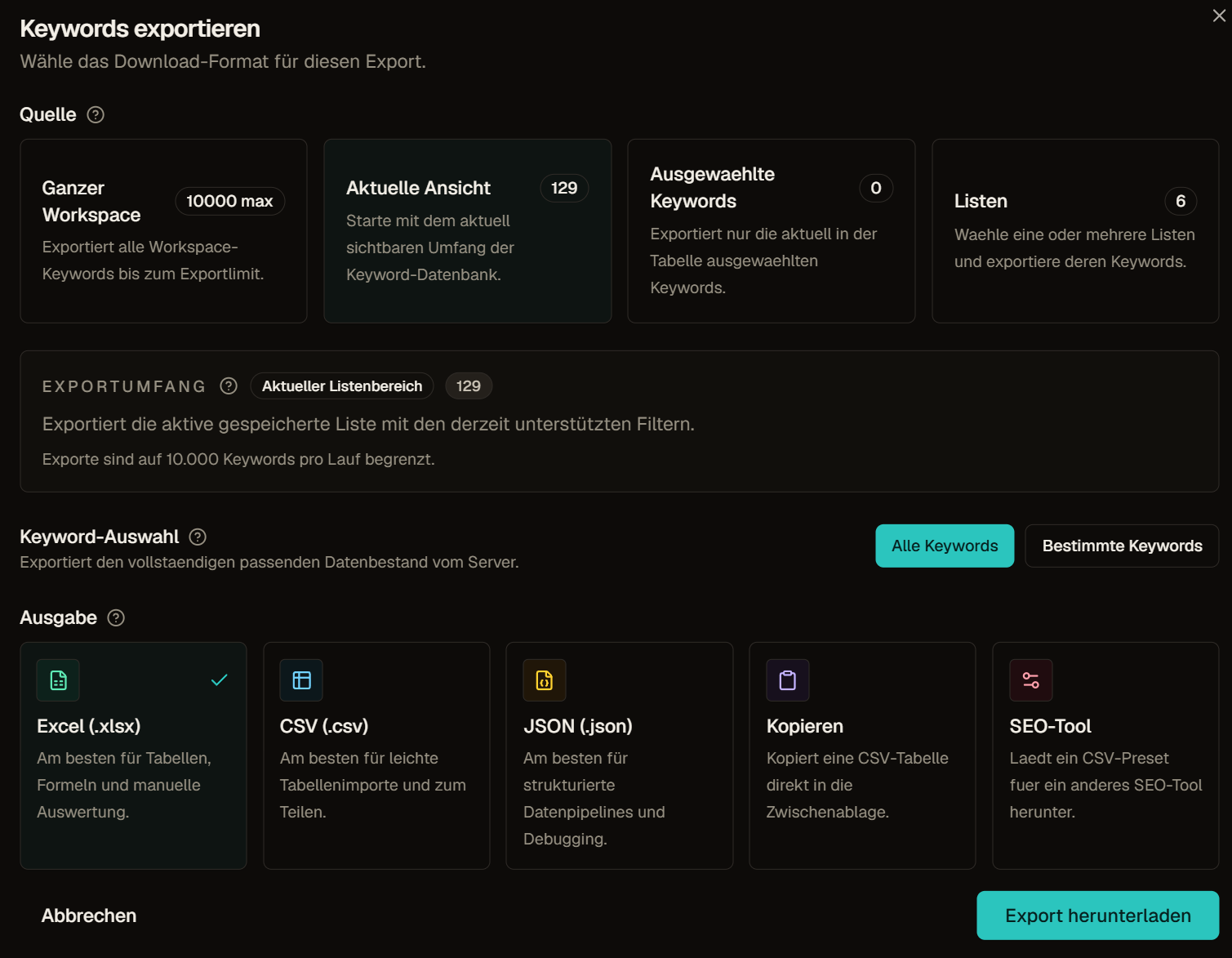
Export sources are the whole workspace, the current supported scope, an explicit keyword selection, or one or more lists. When selected keywords exist, the dialog prefers that selection. A current scope can carry supported filters and sort into the server request. List export resolves list membership and can include list-name annotations for the selected terms.
The source determines rows. The output preset determines the column schema. Visible table columns are not a promise that the export contains exactly those fields, and hiding a column does not remove it from the default export. Read the output choice and inspect a sample file before sending it onward.
For a focused handoff, use filters and columns to make the exported selection match the recipient's question.
Choose a file format or clipboard output for the receiver
The current outputs are CSV, JSON, XLSX, clipboard CSV, and tool-shaped CSV presets for Ahrefs, Semrush, or SISTRIX. The default schema is the broad Crawl Foundry handoff. JSON adds metadata for row count, truncation, and requested maximum. XLSX is useful for spreadsheet review, while clipboard is appropriate only when the receiving surface and row count are controlled.
Tool presets change headers and choose a smaller compatible-looking field set. They do not upload anything, synchronize accounts, convert proprietary metric definitions, or guarantee that a vendor will accept every future format revision. Treat them as shaped downloads and test a small file in the receiving system.
| Output | Important boundary |
|---|---|
| Default CSV | Broad fixed Crawl Foundry schema with blank unknowns |
| JSON | Rows plus export metadata for programmatic review |
| XLSX | Spreadsheet file, not a live workbook connection |
| Clipboard | CSV text copied from the same server export path |
| Tool preset | Renamed and reduced fields, not metric conversion or synchronization |
Read the default export fields by definition, not by header alone
The default file can include keyword display text, tags, manual-list names, language, country, source family, research session, workflow status, core keyword metrics, paid-search fields, link aggregates, Data Health, SERP Dynamics and sample count, scoped Visibility, first-seen and fetch dates, volume trends, and Chances. Unknown values stay empty rather than becoming zero.
Several fields need the metric reference beside them. `top_ten_avg_rank` is provider link rank, `visibility_clicks` is a modeled own-domain estimate, `chances_score` uses only stored Volume and KD, and `status_id` is a workspace label rather than completion proof. Carry source and dates whenever a receiver could otherwise treat these fields as current facts.
Every export is capped and must disclose truncation
One export currently contains at most 10,000 rows. The response reports its row count and whether the result was truncated. A successful download can still be an incomplete slice when the source matched more records than the cap.
Split a larger inventory into named lists or mutually exclusive filters and record each part. Keep the same sort and field preset across parts, and check for overlap before combining them. Never present several capped files as a complete database unless their scopes reconcile to the source total.
Review the file as a receiver would
Open the output before delivery. Check filename date, row count, truncation state, source scope, sort, list annotations, country, data dates, blank values, and any internal status or session identifiers. CSV cells that begin with spreadsheet formula characters are escaped for safer opening, but the receiver still owns file handling and access control.
Do not claim that an export is client-ready merely because it downloaded. The broad default can expose operational fields that are useful internally but distracting outside the team. Choose the narrowest source and suitable preset, explain metric definitions, and attach the decision or question the file is meant to support.
A reproducible import and export workflow
Example: Moving from another SEO tool
A team exports its keyword project from another SEO tool as XLSX and uploads it through the SEO tool path. It maps the keyword, volume, KD and tag columns and leaves unknown columns unmapped.
The preview shows duplicates inside the file and keywords that already exist in the workspace. The team chooses to skip existing records, imports the rest, and later refreshes only the shortlist with current data.
Frequently asked questions
Which file formats can I import?
Plain keyword lines, CSV, TSV, TXT and XLSX files, pasted tables and exports from other SEO tools. The default file limit is 10 MB, and one import can contain up to 10,000 unique keywords.
Are imported metrics treated as current data?
No. Imported values keep the definition and date of their source file. They are useful context, but they are not fresh Crawl Foundry observations until you request new data.
What happens with duplicate keywords?
Duplicates inside the file are merged before the preview. For keywords already in the workspace you decide whether to skip them or let the import update supported fields.