
Use the Keyword Database as an evidence workspace
For your first session, follow the keyword quick start before building a larger database.
One durable keyword record
Several views, one underlying set
Fresh data remains deliberate
What the Keyword Database owns
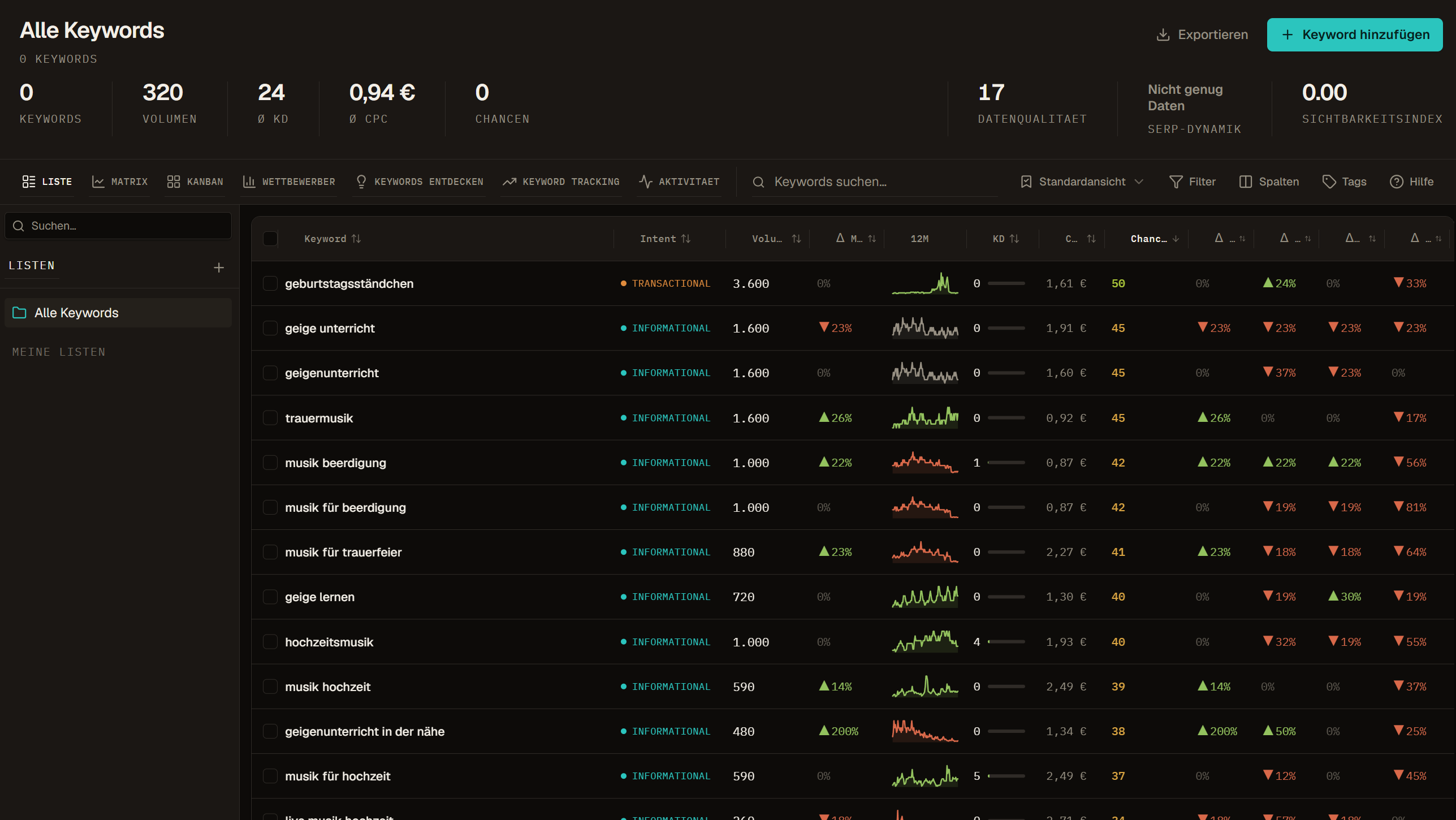
A keyword row is a workspace record for a normalized search term. The record can contain its readable wording, source context, market and language fields, list membership, tags, current metrics, available historical values, requested SERP evidence, supported tracking context, and timestamps. Not every row contains every field, and an empty field does not mean zero.
The database is useful because it keeps those layers attached to the same term. A team can import a seed set, request the first comparable dataset, filter the result, preserve a shortlist, inspect selected SERPs, and export a handoff without losing which workspace, source, or date the evidence belonged to.
- The workspace owns access and operating context.
- Lists and selections own the current working scope.
- Tags add reusable labels that can overlap across lists.
- Metrics and snapshots retain their source and data date where available.
- Activity records supported background operations and their state.
What the record does not decide
A keyword row does not choose a target page, create a brief, approve a claim, assign an editor, or publish content. An Opportunities view can help a team review signals, but it does not turn a calculated value into an approved task. A SERP snapshot shows an observed result environment; it does not establish why a page ranks or guarantee that copying its format will work.
Keep the decision outside the metric. If the team chooses to create, improve, consolidate, track, export, or ignore something, record that handoff in the workflow that owns it. The Keyword Database supplies evidence and a stable scope for that conversation.
A practical keyword lifecycle
Scope comes before the view
The active workspace, list, search, filters, and row selection determine what you are looking at. A view then changes how that scope is presented. If two people see different counts, compare those controls before assuming the underlying data has disappeared.
Use the whole workspace only when the question genuinely concerns the whole inventory. For most reviews, a named list or filtered set is easier to reproduce, cheaper to refresh, and safer to export.
| Control | What it changes |
|---|---|
| Workspace | Ownership, access, and the available keyword inventory |
| List | The named set being worked on |
| Search and filters | Which rows from that set are visible |
| Selection | Which visible rows receive a bulk action |
| View | How the active set is inspected or operated |
| Columns and sort | Which fields are visible and in what order |
Choose the surface for the current question
- List is the primary surface for exact rows, filters, columns, tags, exports, and bulk actions.
- Matrix helps compare selected visual dimensions, then sends detailed checks back to the rows.
- Kanban groups the current set by the workflow status fields the product exposes.
- Opportunities presents calculated signals for review, not automatically approved priorities.
- Competitors summarizes domains observed across the active keyword evidence.
- Discover and Keyword Research expand a bounded seed or comparison question into candidates that still require review before import.
- Tracking configures and reads controlled position measurements for an explicit domain and market context.
- Activity answers what supported operation ran, when, on which scope, and with which visible outcome.
Choose the database view that fits your question instead of treating every view as the same report.
Read source, date, and state together
A value without its collection context is easy to misuse. Check whether it was imported, calculated from stored fields, returned by a requested data action, or derived from supported tracking. Then check its data date and whether the job that was meant to refresh it actually reached a final state.
Zero, unknown, unavailable, and not requested are different. Do not convert an empty cell to zero in a report unless the field definition says that zero is the recorded value. Data Health can point to freshness or completeness concerns, but it does not prove that a keyword is valuable or irrelevant.
Use the onboarding tour as orientation
The first-run tour points out the main controls for adding terms, importing, exporting, searching, switching views, filtering, selecting columns, saving presets, opening lists, checking balance, and reading the summary strip. Its purpose is orientation, not completion of a prescribed workflow.
You can skip the tour and replay it later from Help. When the tour and a current product surface differ, follow the current control and the linked documentation section.
Add a few terms manually
Use the manual add action for a short set of known search queries or a one-off idea. Paste one query per line. Keep the wording close to something a person might search for and remove comments, full article titles, and unrelated language variants.
After adding, confirm the number of rows and the intended list before requesting enrichment. Manual add creates records; it does not silently fetch every paid metric.
Treat import and export as controlled handoffs
Import is appropriate for a prepared file or a larger external set. Clean empty rows, duplicates, mixed markets, and note columns before upload. Preserve useful provenance, but do not assume an imported third-party value is current or defined like a Crawl Foundry field with a similar name.
Export begins with the receiving decision. Choose the workspace or list, intentional filters, selected rows, sort, and required columns. Include source and data date for high-stakes handoffs. A broad dump of every field is harder to review and easier to misinterpret than a smaller, named scope.
Separate organization work from paid data work
Searching, filtering, arranging columns, applying tags, and reading stored values are organization work. Enrichment, fresh external metrics, requested SERP evidence, competitor operations, research, and recurring tracking can use balance depending on the action.
Before confirmation, check the selected row count, packages, market, estimated customer cost, and available balance. After confirmation, use Activity to distinguish queued, running, completed, partial, and failed outcomes. A successful button click is not proof that all requested rows were updated.
Continue with the guide that owns the next step
| Next question | Guide |
|---|---|
| How should keywords, lists, and tags relate? | Keywords, lists, and tags |
| Which surface should I use? | Views |
| How do filters, presets, columns, and tags differ? | Filters, presets, columns, and tags |
| What does a field mean? | Keyword metrics explained |
| How do SERPs, competitors, and tracking differ? | SERP, competitors, and tracking |
| How do I move a clean set in or out? | Import and export |
| When can an action use credit? | Balance and data refreshes |
Example: Planning category guides from an existing export
A content team imports keyword exports from its previous SEO tool into one workspace, cleans duplicates and puts the relevant terms into a list for the next quarter.
Instead of refreshing every row, it requests fresh data only for the shortlisted terms, reviews them in List view, moves approved topics to a Kanban column and exports the final set with source and date context for the editors.
Frequently asked questions
Is the Keyword Database free to use?
Importing, organizing, tagging and exporting keywords is part of the free core. Fresh keyword data, SERP snapshots, competitor data and tracking use balance, and the confirmation shows scope and estimated cost before anything runs.
What does an empty metric field mean?
It is not zero. Unknown, unavailable and not yet requested are different states. Check the source and data date of the row before using a value in a report.
Does the database decide which page to create?
No. It keeps the evidence and the team's working state. Choosing a target page, writing a brief or approving a topic remains a human decision.
Which views does the Keyword Database offer?
List for exact rows, filters and bulk actions, Matrix for a visual comparison of difficulty and potential, and Kanban for a shared workflow status.