
Build a reproducible keyword working set
Decide whether you need a list, a smart list, or tags before using filters to narrow the current view.
Search and filters reduce the visible scope
Saved views remember inspection state
Tags stay on the record
Keyword search matches wording inside the active scope
Search is for the text of the keyword record. Use it for a known query, product name, brand phrase, comparison modifier, question form, or topic expression. It does not search page copy, SERP titles, notes, or every field in the row.
Matching normalizes accents, punctuation, repeated whitespace, and token order before it compares terms. This is more forgiving than a raw character substring, but it still cannot decide whether two phrases share the same search task. Review ambiguous matches instead of treating every lexical hit as relevant.
- Search within a named list when the question concerns that list, not the whole workspace.
- Use the clearest meaningful tokens instead of pasting a sentence or an article title.
- Check whether a brand token also appears in unrelated generic terms.
- Combine search with structured filters when both wording and recorded fields matter.
- Clear or save the search before handing the table to another person.
Filters evaluate structured fields
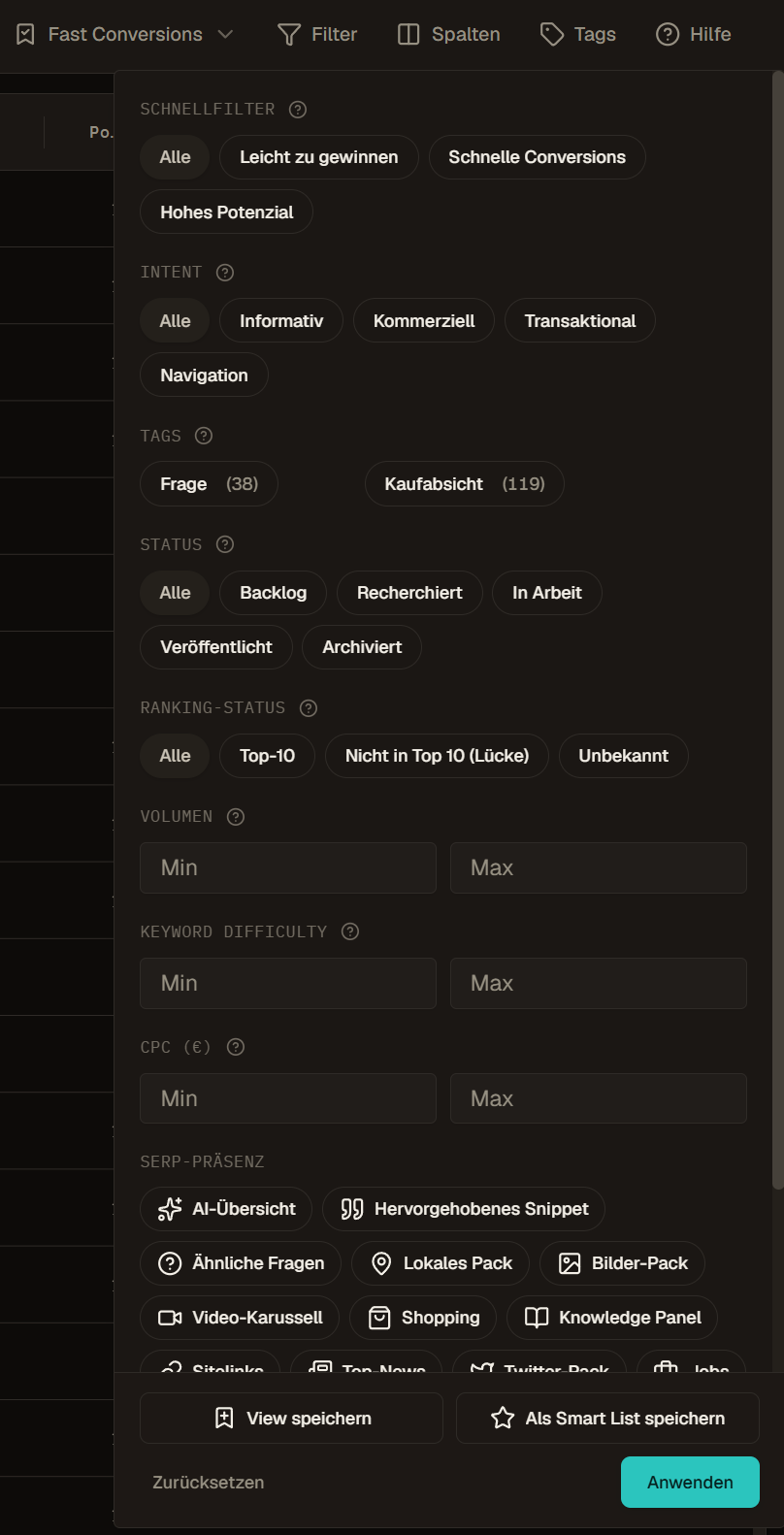
Filters narrow the visible records by stored or calculated fields. The current surface can include intent, tags, shared status, top-ten ranking state, metric ranges, Data Health, SERP Dynamics, visibility state, language, country, data availability, trend state, and SERP-feature presence. Some groups appear only when the corresponding column is visible or when the workspace has the necessary data.
Choose Reset when you need a clean base. Reset also clears the table search in the current workbench flow. Draft changes in the filter panel do not become the active table state until they are applied. After applying, compare the visible count with the original scope before selecting or exporting rows.
| Filter type | Read it carefully |
|---|---|
| Intent, status, or ranking state | A recorded bucket, not a final editorial or business judgment |
| Minimum and maximum ranges | Inclusive constraints on available values; missing values do not become zero |
| Data Health or SERP Dynamics | Data readiness and observed movement, not keyword value or ease |
| Language and country | Stored locale context, which may be absent on older or manual rows |
| SERP-feature presence | Available only when relevant SERP evidence exists; selected features are combined deliberately |
| Has data or trending | Availability or detected state, not proof that the value is current enough for every decision |
Understand how several filters combine
Different filter groups narrow the result together. A row must satisfy the active text, metric, locale, state, and availability conditions that apply. Within multi-select score or locale groups, the selected values define the accepted buckets. Selected tag filters use union logic: a row passes the tag part when it has any selected tag, then it still has to satisfy the other active filters.
Unknown is a real state. A row without a ranking observation is not automatically not ranking. Missing visibility is not zero visibility, and missing metric data does not pass a numeric range simply because zero would. Include or exclude unknown rows deliberately, especially before paid refreshes and client exports.
- State the review question before adding a second or third filter.
- Watch for a visible column that carries a different market or date from the field you intended to filter.
- If a filter group seems absent, check whether its column is currently hidden and whether the required data exists.
- Use the active filter count and visible result count to notice forgotten constraints.
- Test a saved setup on a small sample before using Select all matching.
Separate quick presets, saved views, lists, and smart lists
Quick presets are built-in filter shortcuts such as broad reset, easier-win, commercial, or higher-potential starting points. Choosing one replaces the current filter draft with its fixed rules. It is a starting position for review, not a product verdict and not a saved object owned by the team.
A saved view belongs to the current user and workspace. It can preserve search, filters, the primary sort and tie-breakers, visible column order, and valid column widths. Applying it restores that inspection setup. It does not snapshot rows, freeze metric values, or create list membership, so the matching result can change when records or data change. One saved view can be marked as the user's default for that workspace, and an active view can be updated or deleted.
| Control | What persists |
|---|---|
| Quick preset | A built-in filter recipe applied to the current draft |
| Saved view | A user's search, filters, sort, column order, and supported widths |
| Manual list | Explicit keyword membership chosen by people |
| Smart list | Membership recalculated from the supported saved rules |
| Hybrid list | Rules plus explicit inclusions or exclusions |
| Tag | A workspace label attached to individual keyword records |
Review the rule before saving filters as a smart list
The filter panel can start a smart-list flow, but not every table filter has a smart-rule equivalent. The current handoff maps supported intent, Volume, KD, and CPC conditions. Tags, ranking state, score buckets, locale fields, SERP presence, availability controls, table search, sort, and column choices do not automatically become smart-list rules through this action.
Read the rule shown in the creation flow before saving. If the intended membership depends on an unsupported condition, create a manual list from an explicit reviewed selection or build a supported list rule another way. Never assume the new list reproduces the visible table merely because the flow began from that table.
Columns control evidence on screen, not the records themselves
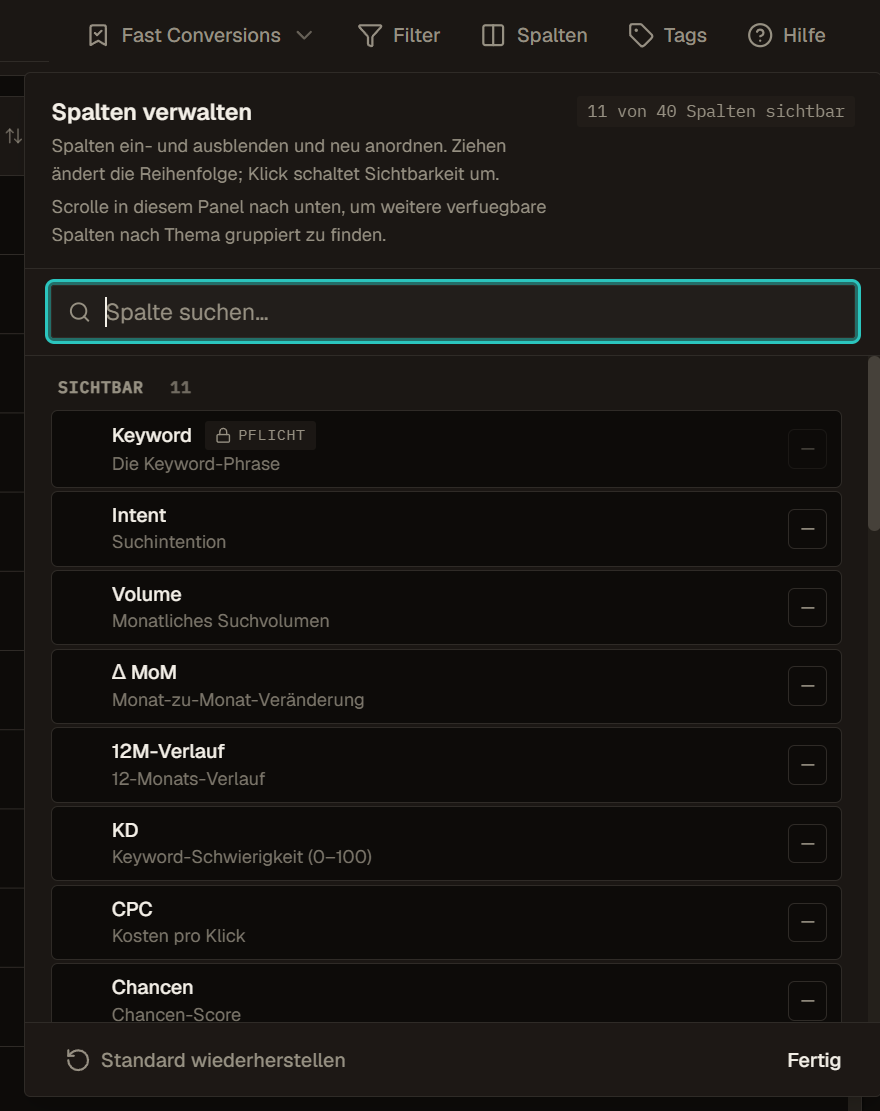
The column manager controls visibility and order, while the table supports valid column widths. Some essential columns remain required. You can search the available fields, move supported fields into or out of the visible set, reorder them, resize them, and restore the defaults. A saved view can retain valid order and sizing for later use.
Hiding a column does not delete its data and does not necessarily clear a filter already based on that field. Several metric filter groups are shown only while their column is visible. If a result seems unexpectedly narrow, inspect the active filters or restore the relevant column before assuming records are missing.
- Use source and data date beside the metric when freshness matters.
- Keep the set small enough that a reviewer can understand every visible field.
- Place identifiers and decision-critical fields before diagnostic details.
- Do not compare fields with similar labels until their definitions and units are clear.
- Preview the exact export fields instead of assuming the visible table and exported schema are identical.
When choosing columns or thresholds, check what each keyword metric measures rather than judging it by its label alone.
Tags add overlapping workspace labels
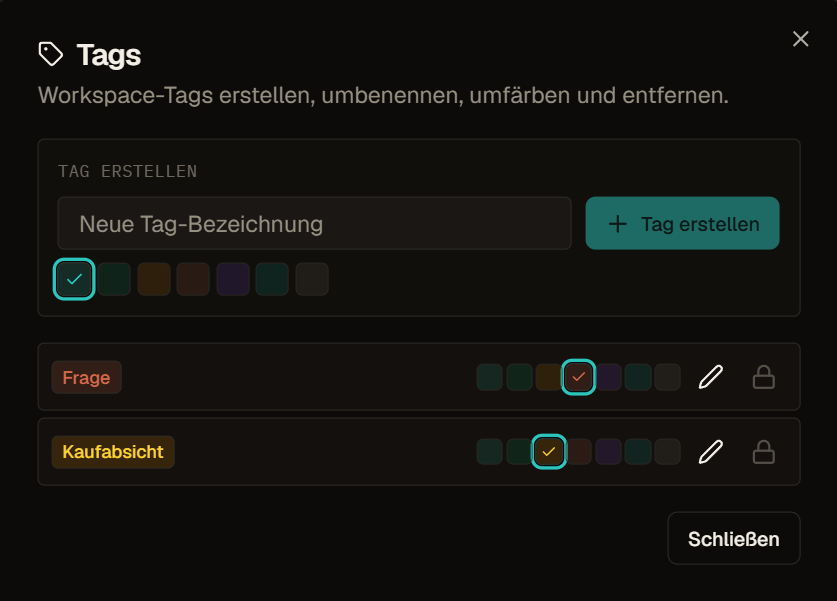
A keyword can carry several tags because campaign, market, owner, review state, and data need may overlap. Tags remain attached to the normalized keyword record across compatible lists and views. Adding or removing a tag does not change list membership, metric values, search intent, or tracking configuration.
The workspace tag manager supports creating, renaming, recoloring, and deleting custom tags. System tags can be renamed or recolored but cannot be deleted. Deleting a custom tag removes its assignments, so check saved filters, exports, and team conventions before confirming. A color helps scanning; it is not a second classification field.
- Use a small naming system with one spelling for each meaning.
- Do not use a tag as proof of client approval, page publication, legal review, or assigned ownership unless the owning workflow confirms it.
- Assign or remove tags from a row for individual corrections and use supported bulk actions for a reviewed set.
- Remember that choosing several tag filters matches any selected tag before the other filters are applied.
- Document a rename when old exports or external handoffs still use the previous label.
Treat selection as a separate operational scope
Filters decide which rows match. Selection decides which rows receive an action. Wait until the list and any automatic page loading have settled before selecting. The header checkbox selects visible rows, while Select all matching can resolve a broader predicate set with explicit exclusions and safety limits. The count in the bulk bar is the action scope to verify.
Large supported bulk operations can continue as background jobs. Do not treat the closed dialog or accepted request as completion. Use the progress banner and Activity to compare requested, processed, succeeded, failed, and excluded counts before starting a second action or exporting the result.
Build and hand off a reproducible review
Example: A commercial review for one market
A strategist opens the market list, filters for commercial intent and a difficulty range, and shows the source, data date and Data Health columns next to the metrics.
She saves the setup as a view for next month's review and turns the intent, volume and difficulty conditions into a smart list so new matching terms join automatically.
Frequently asked questions
How do several tag filters combine?
Selected tags use union logic: a row passes when it has any of the selected tags. It still has to meet every other active filter.
Can I turn my filters into a smart list?
Yes, for supported conditions. Intent, volume, keyword difficulty and CPC map to smart list rules. Tags, ranking state, locale fields, search and column choices do not transfer automatically.
Does hiding a column delete its data?
No. Columns only control what is on screen. The values stay on the record and can be shown again at any time.
What is the difference between a preset and a saved view?
Quick presets are built-in filter starting points. A saved view belongs to you and remembers your search, filters, sort and column setup for later.