
Choose the right keyword work surface
First define filters, columns, and a saved view so each surface answers the same scoped question.
List for exact work
Matrix for a visual comparison
Kanban for shared status
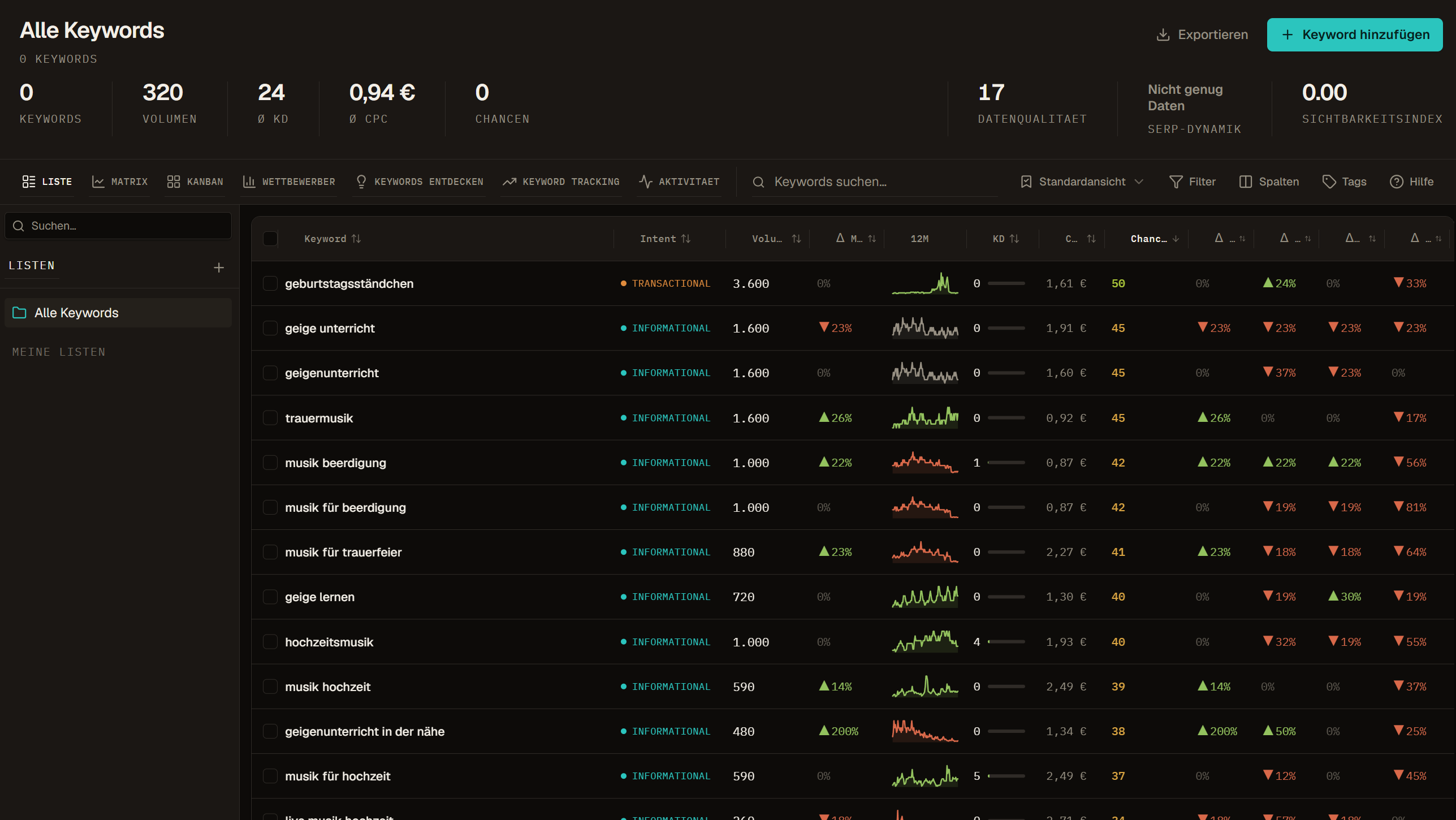
List is the primary Keyword Database view
Use List when the decision depends on exact records. It keeps the active workspace or list scope in a table and supports keyword search, structured filters, sorting, saved table setups, visible column order, tags, row selection, exports, and supported bulk actions. Opening a row gives you its detail without creating a second keyword record.
Start here after an import, manual addition, research handoff, or data request. Check which fields are present, which rows are still unknown, which market the evidence belongs to, and whether the visible count matches the intended scope. Search applies to List today, so do text-led narrowing before you switch to Matrix or Kanban.
- Use a named list when membership itself matters.
- Use filters for temporary focus and a saved preset for a reusable table setup.
- Compare source and data date before treating similar-looking values as comparable.
- Review the selected count separately from the visible count before a bulk or paid action.
- Return to List after a visual review when you need exact values or a controlled export.
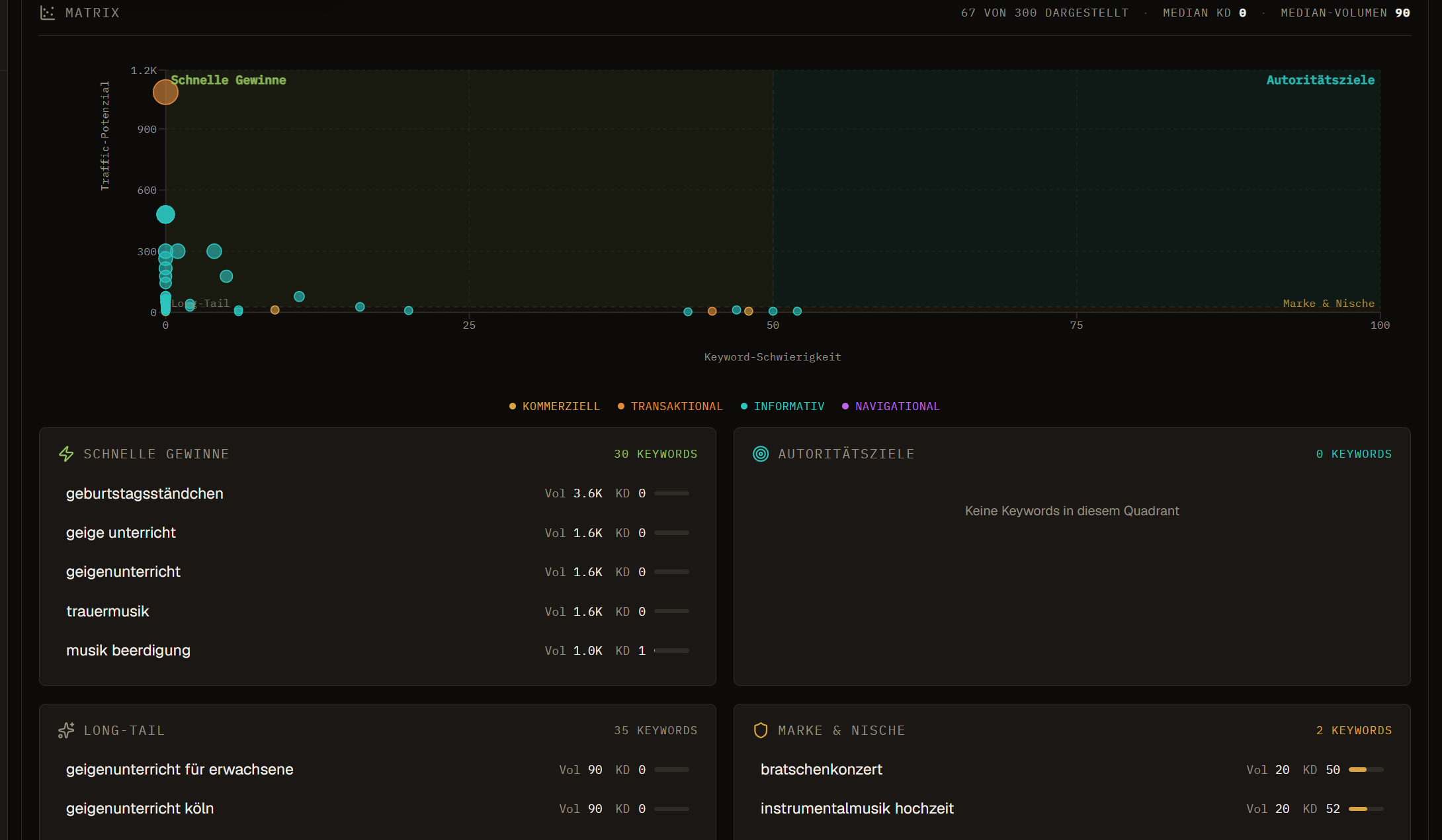
Matrix compares a qualified subset visually
Matrix plots Keyword Difficulty on the horizontal axis and an estimated traffic-potential value on the vertical axis. Bubble size follows search volume and color follows the recorded search intent. Only rows with the fields needed for the plot appear, so the plotted count can be lower than the total count in the active scope.
The quadrant labels are orientation aids, not recommendations. A row in a low-difficulty, higher-demand area still needs a relevance check, current SERP evidence, a defensible page choice, and a team decision. The traffic-potential axis is an approximation based on stored volume and an assumed top-position click rate; it is not measured traffic or a forecast.
- Use Matrix to notice distributions, outliers, and groups worth discussing.
- Check how many rows were omitted because volume, difficulty, or intent is missing.
- Open a point or quadrant row to inspect the underlying keyword record.
- Do not read proximity on the chart as semantic similarity or a content cluster.
- Return to List before approving a shortlist, ordering work, or exporting fields.
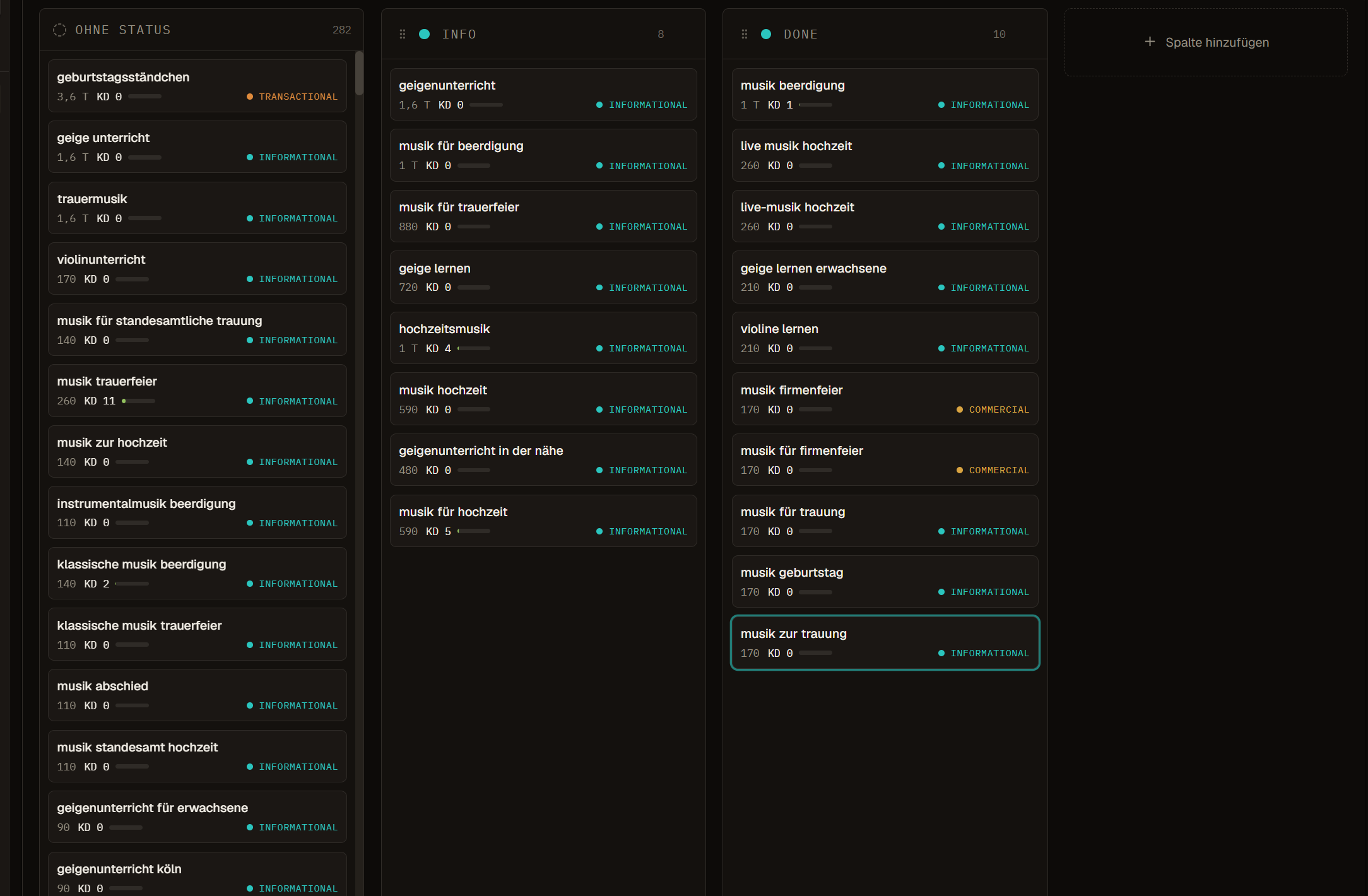
Kanban records a shared workspace status
Kanban arranges the current keyword scope in workspace columns. You can create, rename, recolor, reorder, and remove supported columns, and move one or more keyword cards between them. A separate no-status area keeps records visible until the team assigns a column.
A column means only what the team has agreed it means. Moving a keyword to Review, In progress, Published, or another custom label records a shared status; it does not create a brief, verify that content exists, approve a claim, assign an editor, publish a page, or start position tracking. Keep those handoffs in the surfaces that own them.
- Define each column in terms another teammate can apply consistently.
- Use the loaded-count notice when the board shows only part of a large scope.
- Open a card for keyword evidence before changing a status based on its label alone.
- Treat bulk moves as real shared edits and confirm the selected scope first.
- Use a dedicated project or editorial workflow when ownership, deadlines, approval, and publication must be controlled.
Continue to Action Center for evidence-backed priorities
Opportunities is now a dedicated Action Center route rather than a Keyword Database view. It brings supported work items and their evidence into a separate priority surface. Use it to review why an item is present, how current its inputs are, and which product area owns the next inspection.
A priority is a prompt for human review. It does not prove causation, approve a content task, or guarantee a result. Open the linked evidence, check the affected domain, market, page, keyword set, and date, then decide whether to act, defer, dismiss, or investigate further.
| Question | Check before acting |
|---|---|
| Why is this item here? | Evidence, rule or signal, scope, and data date |
| What would change? | Affected page, query set, crawl finding, or tracking context |
| Who owns the decision? | The person or team responsible for the actual workflow |
| Is the action justified now? | Relevance, freshness, effort, risk, and expected decision value |
For a reasoned next action, open Action Center and inspect the evidence behind its recommendation.
Use Competitive Research for domain comparison
Competitor work now lives on the dedicated Competitive Research route. It can combine domains observed in available keyword or SERP evidence with domains the team has explicitly tracked or added. The overview helps identify recurring domains, overlap, position distributions, and where deeper inspection may be useful.
Observed overlap is not a causal diagnosis. A domain can rank for many terms without being the right business or content benchmark. Open the relevant keyword rows and ranking pages before calling something a gap, deciding that a format should be copied, or commissioning paid domain data. Paid overview and deep-analysis actions have their own scope, estimate, reservation, completion state, and import boundary.
- Confirm the own domain and market context before comparing coverage.
- Distinguish manually curated competitors from domains inferred from observed SERPs.
- Use aggregate domain data for scale and distribution, not for individual keyword claims.
- Import selected competitor keywords explicitly when they should become Keyword Database records.
- Keep source, date, requested depth, stored row count, and provider coverage visible in the handoff.
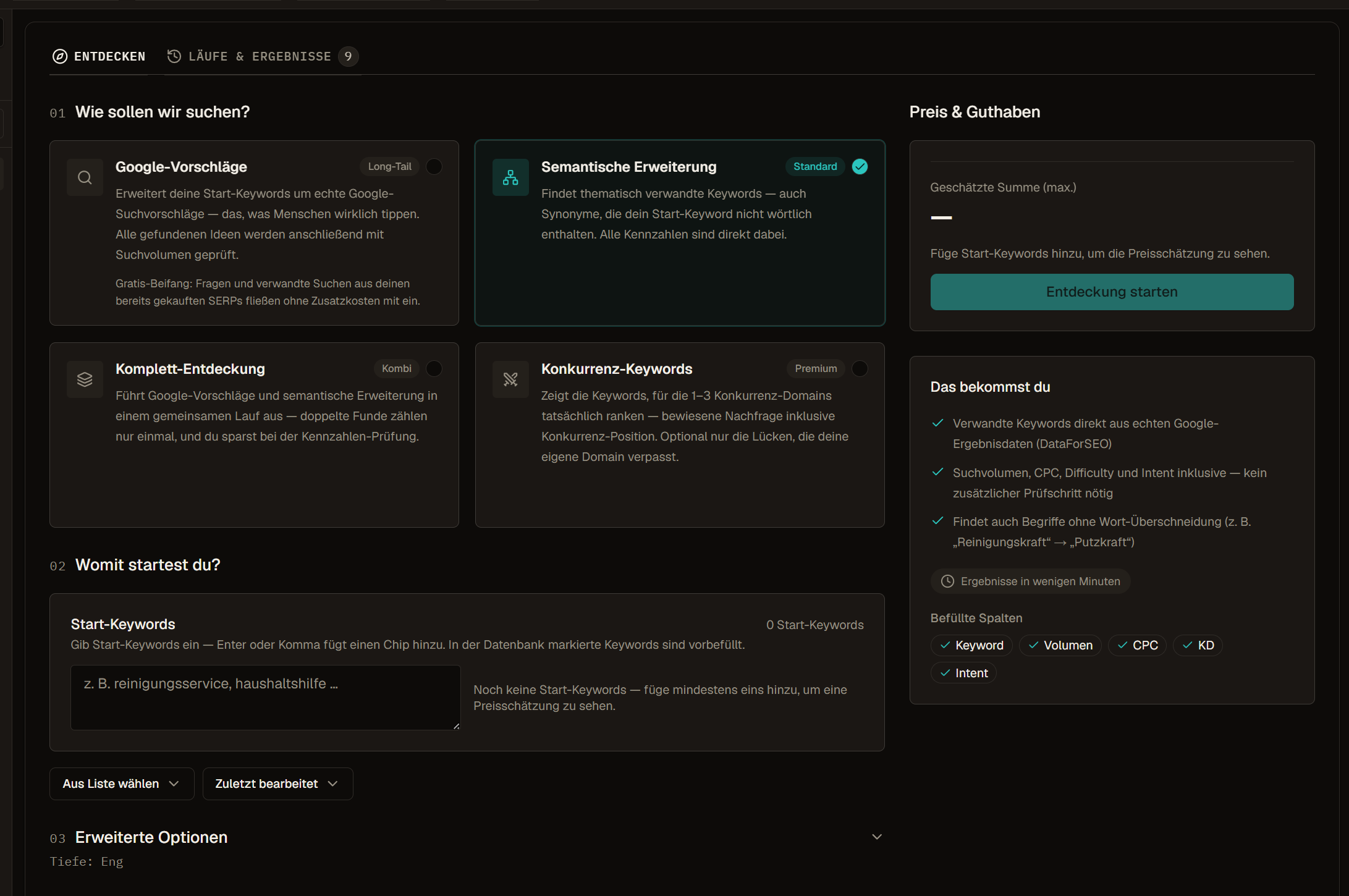
Use Keyword Research to generate candidates
Discover is now the dedicated Keyword Research route. Start with a bounded research question and choose the method that matches it: a quick pass from starting keywords, a deeper pass, or a competitor-domain comparison. The cost preview belongs to the chosen scope and method, not to the eventual number of useful ideas.
Results remain research candidates until a person reviews and imports them. Reject irrelevant languages, markets, brands, duplicates, ambiguous intent, and terms that do not support the project. An explicit import writes selected results into the Keyword Database and can place them in a chosen manual list; viewing a completed run does not silently change the inventory.
If the existing database cannot answer the question, use Keyword Research to gather and review new candidates.
Use Position Tracking for controlled measurements over time
Position Tracking is a dedicated route for recurring measurements. A schedule is based on an explicit keyword list and tracking context. The list is resolved when a run is claimed, so membership changes made before that point can affect the next run; a run already claimed keeps its recorded request scope.
Tracking does not create universal ranking truth. Results belong to the configured domain, market, search context, collection time, and available response. Large lists can use a current-state projection instead of a full historical aggregation. Review cadence, list ownership, monthly budget control, next run, run status, updated count, and settled cost before using the output in reporting.
- Track a named list whose membership and owner are understood.
- Choose a cadence that matches the decision, not the fastest available interval.
- Use Run now for a justified baseline or check, then verify that the run reached a final state.
- Read missing, unchanged, and failed measurements as different states.
- Use the run ledger to connect a chart or position change to the measurement that produced it.
Use Activity to verify operations and investigate state
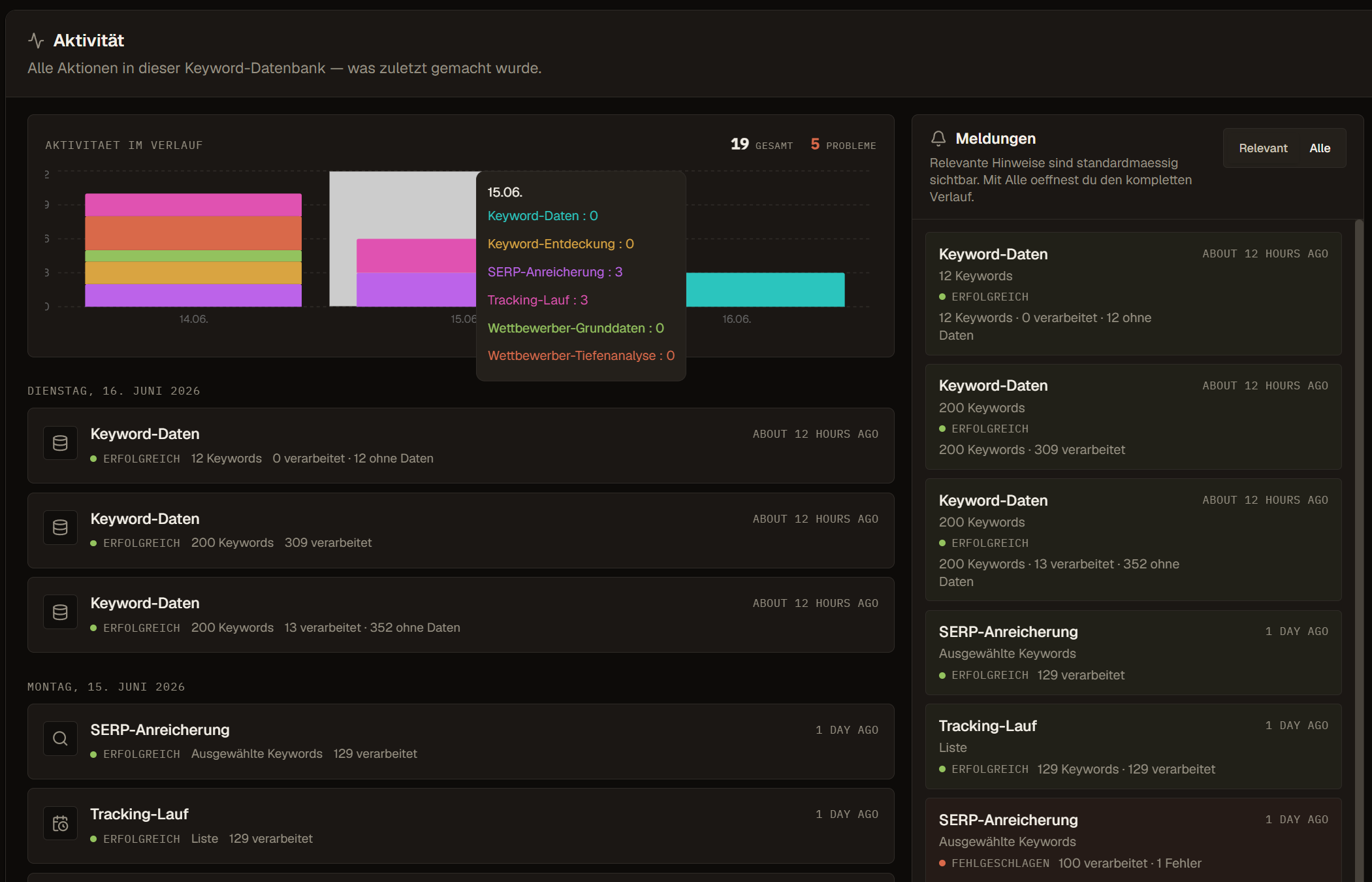
Activity is a standalone workspace record for supported jobs and events. Use it after imports, enrichments, research, SERP requests, tracking runs, competitor operations, exports, and other recorded background work. It can show scope, timestamps, status, counters, progress, failure details, and supported billing state where those fields exist.
Activity proves that a recorded operation reached a particular state. It does not prove that every expected external value exists, that a metric changed for the assumed reason, or that the business outcome was good. Compare requested, completed, skipped, unavailable, and failed counts, then inspect the affected rows before retrying.
| Visible state | What to do |
|---|---|
| Queued or dispatching | Confirm scope and wait for real worker progress |
| Running | Read counters and avoid starting an overlapping request |
| Completed | Check row counts, dates, and the actual records produced |
| Partial | Identify the affected subset before a targeted retry |
| Failed or skipped | Read the recorded reason, billing state, and recovery path |
Move between surfaces without losing the question
Example: From scan to shared status
A strategist opens the quarter list in Matrix to spot terms with lower difficulty and higher potential, then switches to List to check intent, source and data date for those rows.
The approved terms move into the Kanban column In progress, so editors and SEO see the same status without a separate spreadsheet.
Frequently asked questions
Why does Matrix show fewer keywords than the list?
Matrix plots only rows that have the fields it needs: keyword difficulty, estimated traffic potential, volume and intent. Rows without those values stay in List.
What do the Kanban columns mean?
Exactly what your team agrees on. Columns can be created, renamed, recolored and reordered; moving a card records a shared status, not proof that work is done.
Where did Opportunities and Competitors go?
Opportunities now lives in the Action Center, competitor comparison in Competitive Research and candidate generation in Keyword Research. Each has its own guide.