
Create your first useful keyword workspace
Before adding keywords, decide what belongs in one workspace so clients, markets, and team access stay clear.
Begin with a coherent set
Run Essentials first
Finish with a named handoff
Before you add data
Decide who owns the workspace and what belongs in the first set. A useful boundary might be one client in Germany, one product category in the United Kingdom, or one campaign in Spanish. Do not mix markets merely because the same word exists in each language.
Check that the active organization has usable balance if you plan to request paid data. You can still organize imported rows without a paid run, but fresh enrichment, SERP evidence, discovery, competitor data, and recurring tracking may require credit.
- Workspace owner and team access are clear.
- Country and language are known.
- The first keyword source is identifiable.
- The set is small enough to inspect after import.
- You know what decision the first pass should support.
1. Create or select the right workspace
Use a workspace name that still makes sense outside today's task. Include the client or brand and, where necessary, the market. The workspace becomes the boundary for keyword records, lists, tags, supported tracking context, activity, access, and usage conversations.
If two teams should not see the same data or charge paid work to the same operating context, separate workspaces are usually clearer than a growing collection of naming conventions inside one workspace.
2. Add a small keyword set
Use manual add for a few known queries and import for a larger, prepared file. Keep one query per row. Remove notes, complete article titles, duplicate casing variants, and rows from unrelated languages before they enter the workspace.
Imported metrics can be useful as source material, but they do not silently become current Crawl Foundry data. Preserve enough source context to understand where a value came from and request a current dataset only when the decision needs it.
Bringing an existing file? Check import mapping and preview before accepting rows into the database.
3. Request Essentials data
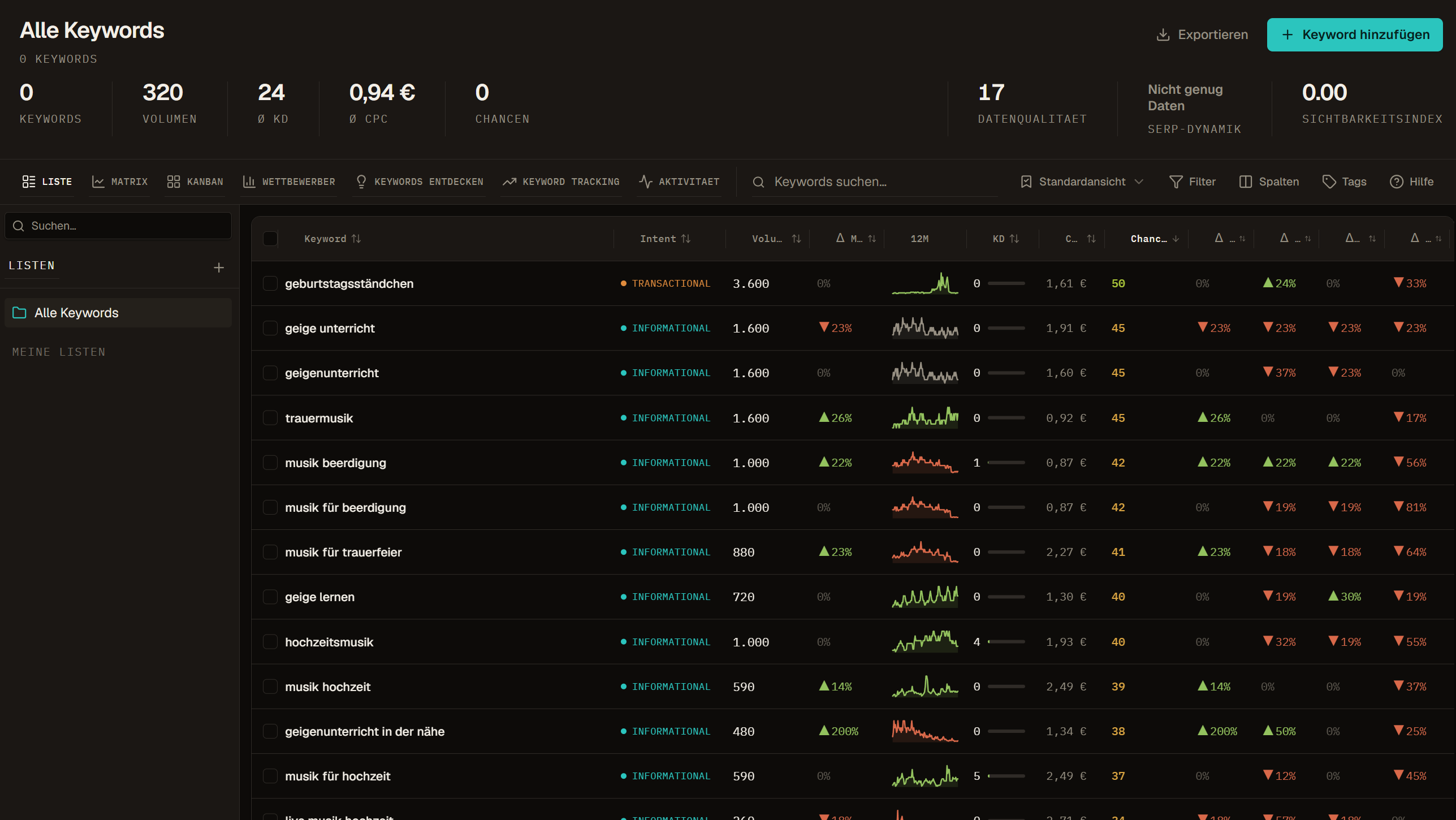
Essentials is the recommended first keyword-data package because it fills the core fields used for sorting and initial review. Select the new rows or the named list, open the data action, and keep Essentials selected unless you already have a documented reason for another package.
Read the cost estimate and selected count before confirming. A submitted request is not a finished run. Keep the scope unchanged until the action is visible in Activity, then wait for a completed, partial, or failed outcome.
- Do not add every optional package to the first run for convenience.
- Use long-tail fallback only when its explanation and additional route fit the set you selected.
- If balance is insufficient, reduce the scope or add balance before retrying.
- If only part of a run succeeds, investigate the failed or missing rows rather than assuming the entire list is current.
4. Review the result as evidence
Start in List view. Read the keyword, intent, volume, difficulty, CPC, source, data date, and Data Health together. One attractive metric should not move a row into the shortlist on its own. A high volume with poor product fit is still poor fit; a low difficulty does not prove that the existing search results match the page you can produce.
Filter obvious mismatches first: wrong language, wrong market, duplicate task, irrelevant intent, or terms the product cannot satisfy. Then review the remaining rows in the context of the original question.
| Observation | Next check |
|---|---|
| Useful term, but old or incomplete fields | Check data date and request only the missing dataset |
| Strong demand, uncertain search task | Request or inspect current SERP evidence |
| Existing domain appears in the results | Check the ranking URL and whether it is the intended page |
| Several terms describe the same task | Keep them together for review; do not create pages from wording alone |
| Run completed with missing rows | Open Activity and inspect source or job details before retrying |
5. Organize the shortlist
Use a list when the team needs a named working set. Use tags for labels that may overlap, such as market, owner, commercial intent, or review state. Use a preset when the value lies in the filters, sorting, and visible columns rather than fixed membership.
Name the handoff for its purpose, not for the tool action that created it. “DACH product comparison review” will age better than “Essentials export 2”. Add only enough structure for another person to understand the scope.
6. Buy deeper evidence only where it changes the decision
- Use current SERP evidence when result type, visible competitors, features, or ranking URL matter.
- Use Keyword Research when the current set is too narrow and new candidates are needed.
- Use Competitive Research or Domain Overview for a bounded domain comparison.
- Use Position Tracking for a controlled list with a domain, market, cadence, owner, and reason for review.
- Export when another person or system needs the selected fields outside Crawl Foundry.
- Stop when the available evidence is sufficient. More rows and fresher fields are not automatically a better decision.
What a completed quick start looks like
- The keywords sit in the intended workspace and market context.
- The first data action has a visible final state in Activity.
- Every shortlisted row has enough source and date context to be interpreted.
- Irrelevant or ambiguous rows are excluded or marked for review.
- The shortlist has a name and an owner.
- The next action is explicit, including the choice to do nothing yet.
Example: An agency onboards a client in Germany
An agency creates a workspace named after the client and the German market, adds the product category queries it already knows and removes notes and duplicate spellings before the import.
It requests the Essentials package for that list, waits until Activity shows the run as finished, and reviews volume, difficulty, intent and data date together in List view. Rows in the wrong language or market are excluded.
The remaining terms become a list called DACH product comparison review with an owner and a next step: a SERP check for the five terms that could justify a new page.
Frequently asked questions
Do I have to pay to try Crawl Foundry?
No. The free plan costs EUR 0, includes three workspaces and starter credit and needs no credit card. You can import and organize keywords without a paid run; fresh data uses balance with the cost shown before you confirm.
What is the Essentials package?
Essentials is the recommended first keyword data package. It fills the core fields used for sorting and review, such as search volume with its monthly history, keyword difficulty, CPC and competition, and search intent.
How many keywords should I start with?
Start small and coherent: one market, one question, a set you can review in one sitting. A focused first run is cheaper, easier to check and teaches the team how to read the data.
When is the quick start complete?
When the keywords sit in the right workspace and market, the first data run shows a final state in Activity, every shortlisted row has source and date context, and the shortlist has a name, an owner and an explicit next action.